Short answer: go to Settings, then System, and choose Factory Reset. It erases the internal drive and returns SteamOS to how it was out of the box. If the Deck won’t start properly, use Valve’s recovery image instead.
How this post was made: researched and written with Claude, an AI assistant, checked against the sources linked in this post, and overseen by Nersing Pradhan. How we make NP Handhelds
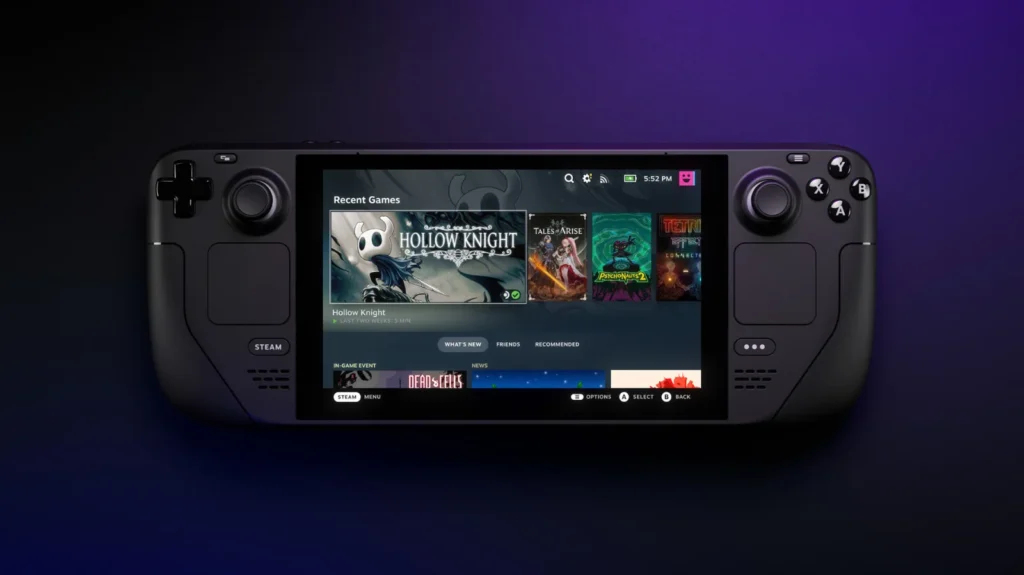
A reset is the last step for software problems you can’t fix any other way, and the first step before you sell or give away your Deck.
What a factory reset erases, and what it keeps
Erased: everything on the internal drive, including installed games, settings, Desktop Mode apps, plugins such as Decky Loader, and any saves that aren’t backed up to Steam Cloud.
Kept: your Steam account and the games you own, saves stored in Steam Cloud, and your microSD card. The reset doesn’t format the card, and Steam usually finds the games on it again after setup.
Before you reset
- Check your cloud saves. Most Steam games sync saves automatically. Open a game’s page in your library to check that its cloud status is up to date.
- Back up anything else. Saves from non-Steam games and emulators, screenshots and files you created in Desktop Mode live on the internal drive. Copy them to the microSD card, a USB drive or cloud storage.
- Plug in the charger, so the Deck doesn’t run out of battery partway through.
Method 1: Reset from Settings
- Press the Steam button and open Settings.
- Choose System, scroll down and select Factory Reset.
- Confirm. The Deck restarts and erases the internal drive, which takes a few minutes.
- When it finishes, you’ll see the first-time setup screen, the same as a new Deck.
Method 2: Reset with the recovery image
Use this if the Deck won’t boot to Game Mode, or a reset from Settings doesn’t fix the problem.
- On a PC, download the recovery image from Valve’s Steam Deck recovery instructions and write it to a USB drive of at least 8 GB, following Valve’s steps.
- Connect the USB drive to the Deck with a USB-C adapter or hub.
- With the Deck off, hold Volume Down and press Power to open the boot manager, then choose the USB drive.
- On the recovery desktop, choose the tool you need. Valve’s page explains each option: one reinstalls SteamOS and keeps your games and data, and another re-images the whole Deck back to factory state.
Try the reinstall option first if you want to keep your games. Re-image the Deck only if that doesn’t fix things, or you’re selling it.
After the reset
- Get your games back faster. If you have a gaming PC, copy games over your home network instead of downloading them again.
- Reinstall your tools, such as Decky Loader and EmuDeck, and set a new password in Desktop Mode if you need one.
Frequently asked questions
Does a factory reset erase my microSD card?
No. It only erases the internal drive. Format the card separately in Settings, Storage if you want it wiped too, for example before selling.
Will I lose my Steam games?
You keep every game you own. Games installed on the internal drive are removed and need downloading again.
How long does a factory reset take?
The reset itself takes a few minutes. Downloading your games again takes longer, depending on your internet speed.
Should I reset my Deck before selling it?
Yes. A factory reset signs your account out and erases your data. Format the microSD card too if it’s going with the Deck.
More Steam Deck troubleshooting is on the NP Handhelds YouTube channel.