Desktop Mode turns your Steam Deck into a Linux PC, with a regular desktop, a file manager, a web browser and an app store. You need it for anything Game Mode can’t do, such as installing Decky Loader, EmuDeck or other game launchers.
How this post was made: researched and written with Claude, an AI assistant, checked against the sources linked in this post, and overseen by Nersing Pradhan. How we make NP Handhelds
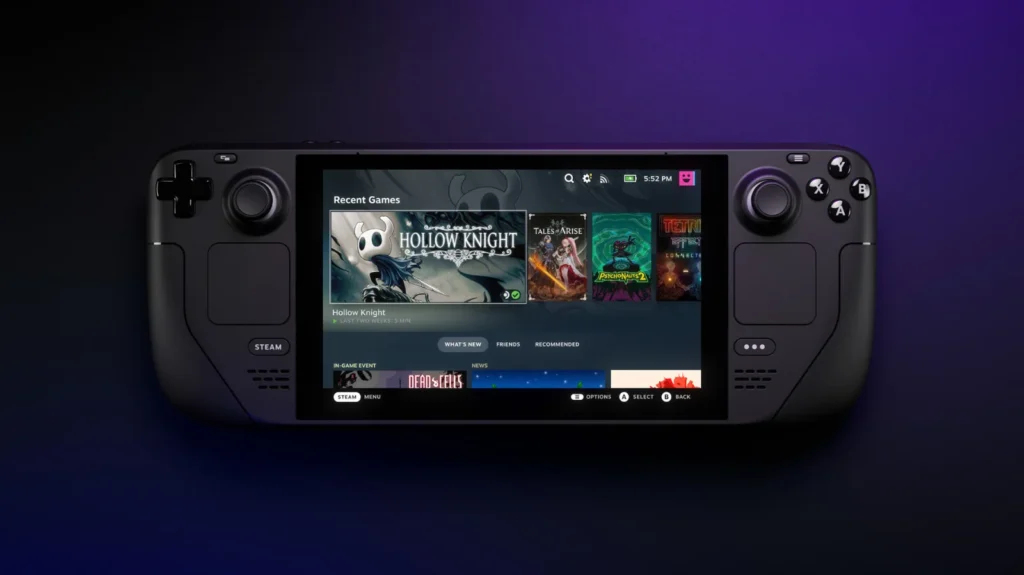
It’s an official part of SteamOS, so you can’t break anything just by opening it. Here’s how to find your way around.
How to switch to Desktop Mode
- Press the Steam button.
- Go to Power and choose Switch to Desktop.
You can also hold the power button for a second and pick Switch to Desktop from the menu. After a few seconds, you’ll see the KDE Plasma desktop that SteamOS uses.
How to get back to Game Mode
Double-click the Return to Gaming Mode icon on the desktop. Restarting the Deck also takes you back to Game Mode.
How to use it without a keyboard and mouse
The Deck’s default desktop controls work like a laptop:
- Right trackpad moves the pointer.
- R2 (right trigger) is a left click, and L2 is a right click.
- Left trackpad scrolls.
- Steam + X opens the on-screen keyboard.
That’s enough for quick jobs. For anything longer, plug in a keyboard and mouse through a USB-C hub or pair them over Bluetooth. Click the Bluetooth icon in the taskbar to pair.
How to install apps
Open Discover, the shopping bag icon in the taskbar. It’s an app store for Linux apps from Flathub. Search for an app, click Install and it appears in the application menu. Popular picks include web browsers such as Firefox and Chrome, the Heroic Games Launcher for Epic and GOG games, Discord, VLC and Prism Launcher for Minecraft.
Apps from Discover are kept separate from the system, so they survive SteamOS updates.
How to add a desktop app to Game Mode
Right-click an app in the application menu and choose Add to Steam. Back in Game Mode, it shows up in the library under Non-Steam, and you can launch it without visiting the desktop again.
Where your files are
Open Dolphin, the folder icon in the taskbar.
- Your home folder is where downloads, documents and most app data live.
- Your microSD card appears under Removable Devices in Dolphin’s sidebar.
- Some folders, such as the one holding your Steam games, are hidden. Press Ctrl + H to show hidden files, or use the menu option.
Set a password
Some tools, including Decky Loader, need administrator access. SteamOS doesn’t set a password for you. To create one, open the Konsole app, type passwd and follow the prompts. Write it down somewhere safe, because there’s no simple way to recover it if you forget it.
What to avoid
- Don’t unlock the system files. SteamOS keeps its system partition read-only. Guides that tell you to unlock it are for advanced users, and SteamOS updates undo most changes anyway.
- Stick to Discover for apps. Apps from Discover update cleanly and don’t touch the system.
- Don’t delete things in hidden folders unless you know what they are.
Frequently asked questions
Do I need a keyboard and mouse for Desktop Mode?
No. The trackpads and the on-screen keyboard work fine for short tasks. A keyboard and mouse just make longer jobs faster.
Can Desktop Mode damage my Steam Deck?
No. It’s a standard part of SteamOS. The only risky things are advanced changes to system files, which Desktop Mode doesn’t do on its own.
Can I use Desktop Mode on a monitor?
Yes. Connect the Deck to a monitor or TV and it works like a small desktop PC. Our guide to connecting a Steam Deck to a TV covers the cables and docks.
Why does my Deck boot into Game Mode every time?
That’s by design. Game Mode is the default, and Desktop Mode is something you switch to when you need it.
Want a walkthrough on video? Find it on the NP Handhelds YouTube channel.