EmuDeck is a free installer that sets up dozens of emulators on the Steam Deck in one go, with controls and settings already tuned for the Deck. It also adds your games to the Steam library, so they look and launch like any other game.
How this post was made: researched and written with Claude, an AI assistant, checked against the sources linked in this post, and overseen by Nersing Pradhan. How we make NP Handhelds
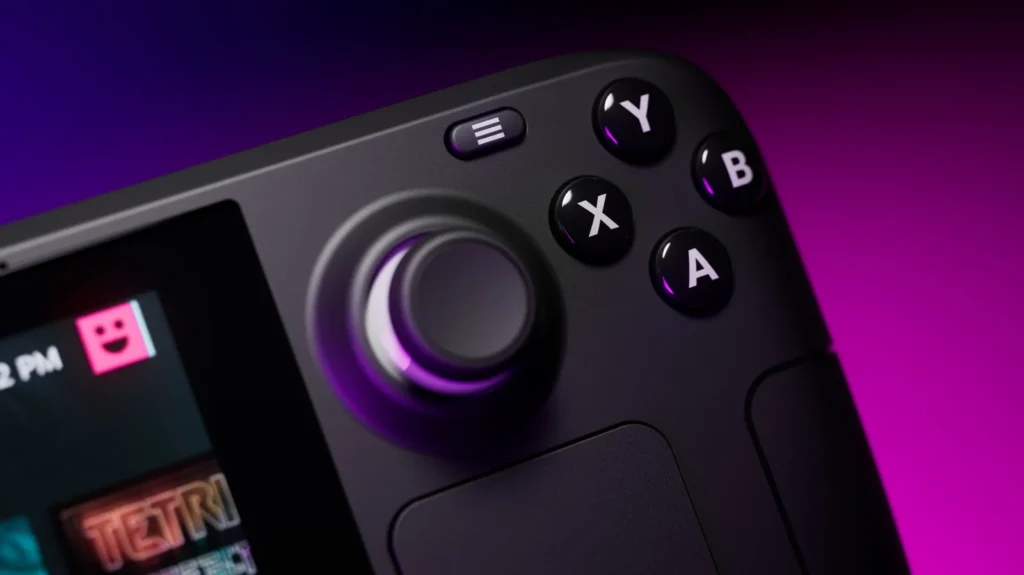
One rule before we start: only use games and BIOS files that you’ve copied from consoles and games you own. EmuDeck doesn’t include any games, and neither do we.
What you need
- A Steam Deck with SteamOS up to date.
- A microSD card if you want to keep your games off the internal drive. See our microSD card picks if you need one.
- Your own game files and, for some systems, BIOS files dumped from your own console.
- About 20 minutes and a decent Wi-Fi connection, because EmuDeck downloads each emulator during setup.
How to install EmuDeck
- Press the Steam button, choose Power, then Switch to Desktop. New to the desktop? Our Desktop Mode guide covers the basics.
- Open a browser, go to emudeck.com and download the installer for SteamOS.
- Open your Downloads folder and double-click the installer. Choose Continue if you’re asked whether to run it.
- When EmuDeck opens, choose Easy Mode. It installs a sensible set of emulators with settings tuned for the Deck. Custom Mode lets you pick each emulator yourself, which you can do later.
- Choose where to install: your SD card or internal storage. Your games, BIOS files and saves will live there, so pick the SD card if your internal drive is small.
- Let the installer finish, then leave EmuDeck open for the next steps.
Where to put your games and BIOS files
EmuDeck creates an Emulation folder on the drive you chose. Inside it:
- Emulation/roms has a folder for each system, such as snes, gba, psx and ps2. Put each game in the folder for its system.
- Emulation/bios is where BIOS files go. Systems such as the PlayStation, PlayStation 2 and Sega CD need one. Most older Nintendo systems don’t.
To move files from a PC, use a USB drive, copy them over your home network, or download them from your own cloud storage in Desktop Mode.
How to add your games to Steam
EmuDeck uses a tool called Steam ROM Manager to add your games to the Steam library, complete with artwork.
- In EmuDeck, open Steam ROM Manager. Steam closes while it runs.
- Make sure the systems you want are switched on. EmuDeck sets up the right options for you.
- Let it scan your games, check that the artwork matches each one, then save the list to Steam.
- Close Steam ROM Manager and double-click Return to Gaming Mode.
Your games now show up in the Steam library as non-Steam games, sorted into a collection for each system. Run Steam ROM Manager again whenever you add new games.
Which systems run well
The Steam Deck handles most older systems with ease. Based on widely shared community testing:
- Up to the PlayStation 1, Nintendo 64, Dreamcast, GameCube and Wii: most games run well at full speed.
- PlayStation 2 and PSP: most games are playable, and some need per-game tweaks.
- PlayStation 3: lighter games can run, but demanding ones struggle.
Performance varies a lot from game to game, so if one game stutters, check its page on the emulator’s compatibility list before changing settings.
Keep EmuDeck up to date
Open EmuDeck from Desktop Mode every month or two and install any updates it offers. Emulators improve quickly, and updates often fix games that didn’t run before. A SteamOS update can also change how things behave, so if something breaks after one, updating EmuDeck is the first thing to try.
Frequently asked questions
Is EmuDeck legal?
EmuDeck and the emulators it installs are legal software in most countries. Downloading games or BIOS files you don’t own is not. Dump your own games and console BIOS files.
Can I keep my games on a microSD card?
Yes. Choose the SD card during setup, and EmuDeck puts the whole Emulation folder there. You can still add games stored internally later.
Does EmuDeck work on the Steam Deck OLED?
Yes. It works the same way on the LCD and OLED models.
What’s the difference between EmuDeck and RetroDECK?
Both are free and set up emulators for you. RetroDECK installs as a single app from the Discover store and keeps everything inside it, while EmuDeck installs separate emulators and adds games straight to your Steam library. If you want your games mixed in with your Steam library, EmuDeck is the easier choice.
Want to see EmuDeck running? Watch our videos on the NP Handhelds YouTube channel.