Short answer: cap the frame rate, match the refresh rate, set a power limit for lighter games and turn the brightness down. Those four changes make the biggest difference to Steam Deck battery life. The rest of this list adds smaller gains on top.
How this post was made: researched and written with Claude, an AI assistant, checked against the sources linked in this post, and overseen by Nersing Pradhan. How we make NP Handhelds
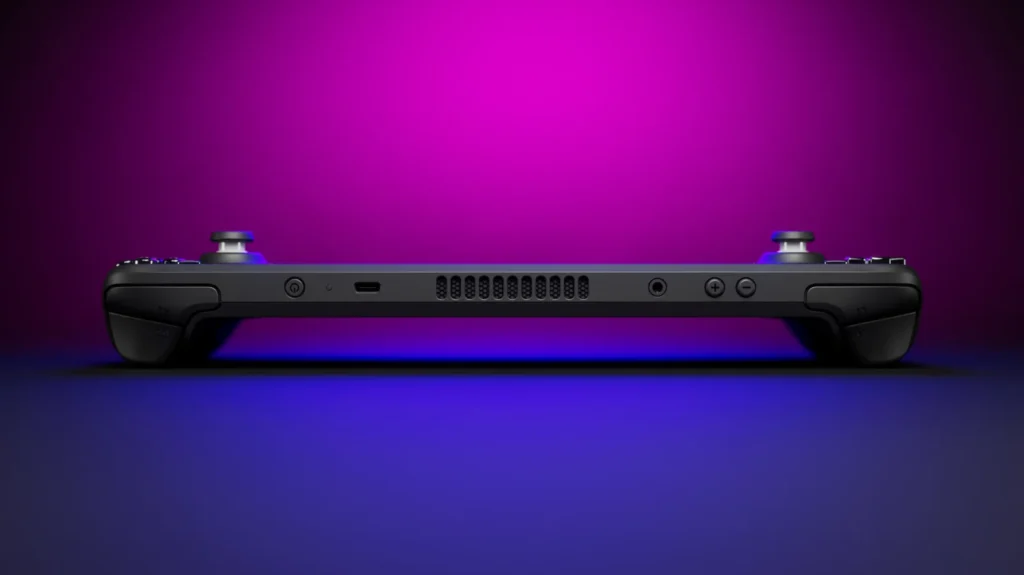
Valve rates the LCD model’s 40Wh battery at 2 to 8 hours of gaming, and the OLED model’s 50Wh battery at 3 to 12 hours, according to its tech specs. Where you land in that range depends on the game and your settings.
Open the performance menu by pressing the ••• button and choosing the battery icon. Turn on Use per-game profile first, so each game keeps its own settings. Our performance settings guide explains every option in detail.
1. Cap the frame rate
This is the biggest single saving. A game running at an uncapped 60 frames per second works the chip much harder than one capped at 30 or 40. Pick the highest cap the game holds steadily, and lower it for slower games where smoothness matters less.
2. Match the refresh rate
Set the screen’s refresh rate to match your cap: 40Hz for 40 frames per second on the LCD model, 45Hz or 90Hz for 45 on the OLED. It keeps motion smooth at lower frame rates, so you don’t feel the need to raise the cap.
3. Set a TDP limit for lighter games
The TDP limit caps how much power the chip can draw. Indie and older games often run exactly the same with a much lower limit. Lower it step by step while watching the frame rate in the performance overlay, and stop when the frame rate starts to drop.
4. Turn the brightness down
The screen is one of the biggest power users after the chip. Lower the brightness until it’s comfortable rather than leaving it high. Indoors, you rarely need it at the top.
5. Lower the game’s resolution and use FSR
For demanding games, set a lower resolution in the game’s own settings and choose FSR as the scaling filter. The chip renders fewer pixels and FSR sharpens the result, often for a modest loss in image quality.
6. Lower the heaviest graphics settings
Shadows, volumetric fog and reflections cost a lot of power for small visual gains on a 7-inch screen. Dropping them gives the chip room to run cooler and use less battery.
7. Turn off Wi-Fi for offline games
If a game doesn’t need the internet, turning on Airplane Mode saves a little power. It also stops downloads running in the background.
8. Choose darker scenes on the OLED
On the Steam Deck OLED, dark pixels use less power than bright ones. A dark theme in game menus, or night-time games, can stretch battery life slightly. This doesn’t apply to the LCD model.
9. Use half rate shading where it works
In games that support it, half rate shading gives the chip less to do. It softens the image, so try it in demanding games and turn it off if you don’t like the look.
What doesn’t help much
Lowering the speaker volume, turning off haptics and closing the Steam overlay make little measurable difference. Focus on the first four changes on this list.
Frequently asked questions
Why does my Steam Deck battery drain so fast in some games?
Demanding games run the chip at full power. Without a frame rate cap or power limit, a modern game can empty the battery in a couple of hours. Capping the frame rate is the quickest fix.
Is it bad to play while charging?
No. The Deck is designed to be played while plugged in.
Does the OLED model have better battery life?
Yes. It has a bigger battery and a more efficient screen and chip, and Valve rates it for longer play than the LCD model.
How do I store my Steam Deck for a long time?
Charge it to around half, switch it off and keep it somewhere cool. For long storage, Valve’s battery storage mode in the boot menu stops the battery draining.
Watch our battery tests on the NP Handhelds YouTube channel.