The Steam Deck’s performance menu decides how smooth your games run and how long the battery lasts. Open it by pressing the ••• button and choosing the battery icon. Here’s what each setting does and when to change it.
How this post was made: researched and written with Claude, an AI assistant, checked against the sources linked in this post, and overseen by Nersing Pradhan. How we make NP Handhelds
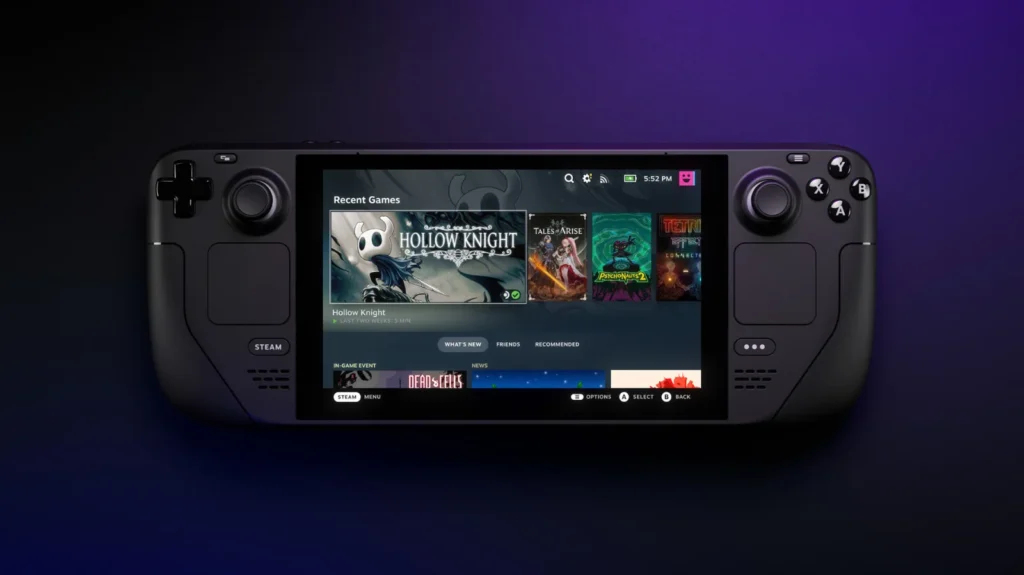
Some options only show up after you turn on Advanced View at the bottom of the menu.
Use per-game profile
Turn this on and your changes apply only to the game you’re playing. Leave it off and they apply to every game. Most people should turn it on, so a battery-saving setup for one game doesn’t slow down another.
Performance overlay level
Shows information on screen while you play. The first level shows just the frame rate; higher levels add CPU and GPU load, power draw, temperatures and battery time. Use it to check whether a setting change actually helped.
Frame rate limit
Caps how many frames per second the game runs at. A steady, capped frame rate feels smoother than one bouncing around, and it saves battery. 30 is fine for slower games, 60 for fast ones if the Deck can hold it. On the LCD model, many people use 40 frames per second with a 40Hz refresh rate as a middle ground.
Refresh rate
How many times per second the screen updates: 40Hz to 60Hz on the LCD model and 45Hz to 90Hz on the OLED. Match it to your frame rate cap, so 40 frames per second at 40Hz, or 45 at 45Hz or 90Hz on the OLED. Even pacing makes lower frame rates feel smoother.
Allow tearing
Lets the game show frames as soon as they’re ready, which can reduce input delay but causes horizontal tearing lines. Leave it off unless you’re sensitive to input lag in fast games.
Half rate shading
Shades parts of the image at a lower rate to gain performance, at the cost of a softer image. It only works in some games. Try it in demanding games when you need a few more frames.
TDP limit
Sets the most power, in watts, the Deck’s chip can use. Lowering it saves battery and keeps the fan quiet. It’s ideal for older or lighter games that don’t need full power. Raise it back, or turn the limit off, for demanding games.
Manual GPU clock control
Locks the graphics chip to a set speed. It’s useful for troubleshooting, but for most games the Deck manages clock speeds better on its own. Leave it off unless a guide for a specific game suggests otherwise.
Scaling mode and scaling filter
These matter when a game runs below the Deck’s 1280 x 800 resolution, which is a common way to get more performance.
- Scaling mode decides how the smaller image fills the screen, for example by keeping its shape or stretching it.
- Scaling filter decides how it’s sharpened. FSR, AMD’s upscaler, usually looks best when you lower the game’s resolution in its own settings. Linear is soft but neutral, and Pixel keeps pixel art crisp.
FSR only kicks in when the game runs full screen at a lower resolution than the screen.
A simple starting setup
- Turn on Use per-game profile.
- Set the in-game graphics to the Deck’s native resolution, or lower with FSR for demanding games.
- Pick a frame rate cap the game can hold, and match the refresh rate.
- Lower the TDP for light games to save battery.
Our battery life guide builds on these settings.
Frequently asked questions
What’s the best frame rate limit for the Steam Deck?
The highest one the game can hold steadily. For demanding games, that’s often 30 or 40 on the LCD and 45 on the OLED. For lighter games, 60, or 90 on the OLED.
Does lowering the TDP hurt performance?
Only when the game needs more power than the limit allows. Lighter games often run the same at a lower TDP and use less battery.
Should I use FSR?
Yes, when you run a game below the Deck’s native resolution. It sharpens the upscaled image. At native resolution, it has no effect.
Can I mess anything up with these settings?
No. They’re safe to change, and you can reset a game’s profile at any time.
Watch our settings videos on the NP Handhelds YouTube channel.


