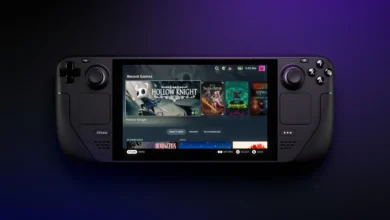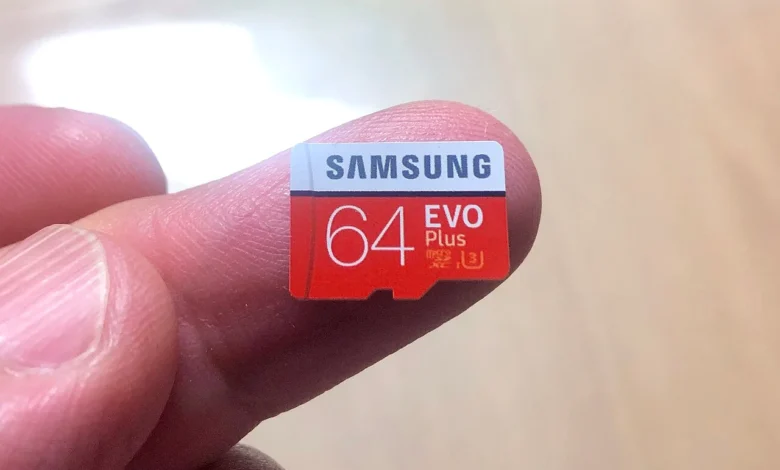
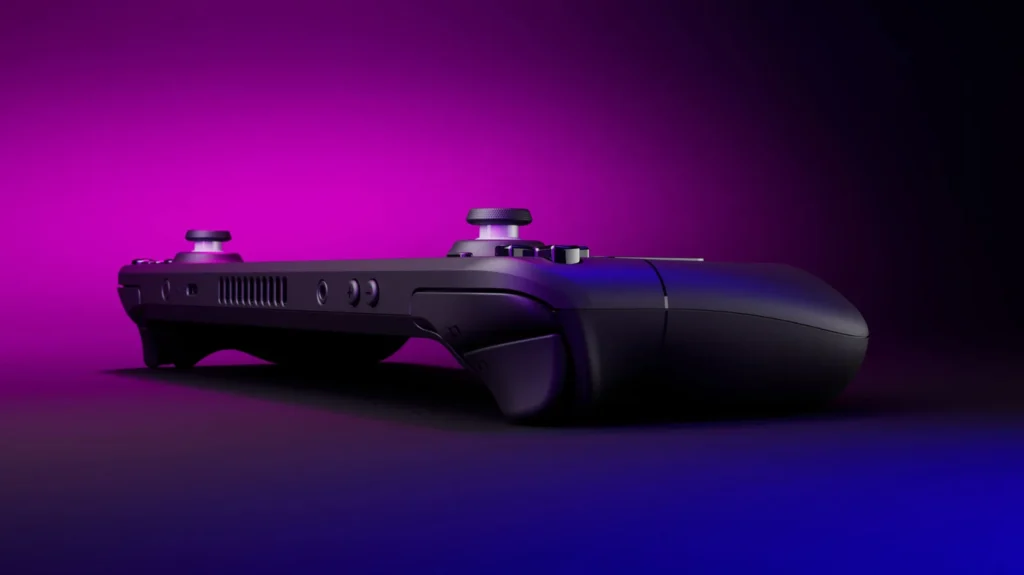
The cheapest upgrade you can make to a Steam Deck costs less than most new games and takes ten seconds to fit. It’s also the upgrade people most often overpay for, because the numbers printed on the card mostly don’t apply to the Deck.
Short answer: the best microSD card for most Steam Deck owners is a 512 GB or 1 TB Samsung PRO Plus. The Lexar Professional Silver Plus and SanDisk Extreme are equally good picks, and the Samsung EVO Select is the budget choice. Buy a card rated A2, U3 and V30, and skip microSD Express cards.
How this post was made: researched and written with Claude, an AI assistant, checked against the sources linked in this post, and overseen by Nersing Pradhan. How we make NP Handhelds
As an Amazon Associate, NP Handhelds earns from qualifying purchases. Some links on this page are affiliate links; they never change a pick, and our affiliate disclaimer explains how it works.
The quick picks
| Pick | Best for | Ratings | Warranty |
|---|---|---|---|
| Samsung PRO Plus | Most Steam Deck owners | U3, V30, A2 | 10 years, limited |
| Lexar Professional Silver Plus | The fastest card Engadget tested | U3, V30, A2 | Lifetime, limited |
| SanDisk Extreme | Up to 2 TB in one card | U3, V30, A2 | Lifetime, limited |
| Samsung EVO Select | Tight budgets | U3, V30, A2 (newer cards) | Check the pack |
| microSD Express cards | Not the Steam Deck | Built for the Switch 2 | Not worth it here |
We don’t list prices in this guide, because memory card prices have swung a lot in 2026. Check today’s price for each card through the links below.
So why can a card rated at 180 MB/s run no faster in your Deck than one rated at 130? Because of a slot most people never think about.
The slot sets the speed limit
Valve’s spec sheet lists the Steam Deck’s card reader as UHS-I. That’s the older and most common microSD bus, and its standard top speed is 104 MB/s. The ROG Xbox Ally X, by contrast, has a faster UHS-II reader, according to ASUS.
Here’s the catch with the big numbers on card packaging. Samsung’s data sheet rates the PRO Plus at up to 180 MB/s for reading, and SanDisk rates the Extreme at up to 190 MB/s. Both makers note that you need their own card readers to hit those speeds. Plug either card into a Steam Deck, and it runs at standard UHS-I speed, like every other good card.
That doesn’t make the fast cards pointless. They’re excellent at writing large files, which helps when you copy a game library onto the card from a PC, and the brands behind them are the ones with long warranties and consistent quality. But it means you’re paying for reliability and capacity, not for faster loading on the Deck.
That raises the obvious question: how much slower is a card than the Deck’s own SSD?
How much slower is a card than the internal SSD?
Less than you might expect, and mostly only in loading screens.
Before the Deck launched, Linus Tech Tips and The Phawx tested load times on early units. In Control, Dead Cells and Street Fighter 5, loading from microSD was “almost identical” to the internal SSD, PC Gamer reported. Portal 2 and Ghostrunner were the exceptions, loading roughly 10 to 17 seconds slower from the card.
A more detailed test came in 2023, when Steam Deck HQ compared five drives, including a 256 GB Samsung EVO Select card. Average frame rates were within the margin of error across every drive. The differences showed up in two places: longer loading, with Horizon Zero Dawn taking over a minute and a half from the card, and rougher dips in Returnal when the game streamed in new areas.
So the card won’t lower your average frame rate. It will make some loading screens longer, and in games that stream a lot of data while you play, you may feel the odd extra stutter. If that matters for one game, install that game on the internal drive and keep the rest on the card.
We’ll run our own load time tests on video. Until then, those are the best published numbers.
What the labels on a card actually mean
Card packaging is a mess of letters. Only a few matter for a Steam Deck, and Kingston’s guide to the labels explains the minimum speeds behind them:
- U3 and V30 both promise at least 30 MB/s of sustained writing. That’s more than enough for installing and updating games.
- A2 promises at least 4,000 random reads and 2,000 random writes per second, plus 10 MB/s of sustained writing. Games read lots of small files, so random reads matter. The SD Association created the A1 and A2 classes for cards that run apps, not just store photos.
- SDXC is the format for cards from 64 GB to 2 TB, which is what you’ll buy.
- UHS-I is the bus. A UHS-II card works in the Deck, but at UHS-I speed, so don’t pay extra for it.
One honest caveat: A2 includes features that need support from the device, and it isn’t clear the Deck uses all of them. Treat A2 as a marker of a modern, well-made card rather than a speed promise.
With the labels sorted, here are the cards worth buying.
How we chose and tested
We started with cards from the three makers with the longest track records in microSD: Samsung, SanDisk and Lexar. We checked each one’s official ratings and warranty against the makers’ own spec sheets, then looked at independent testing, mainly from Engadget’s 2026 microSD guide, and at published Steam Deck tests. We left out cards without A2 and U3 ratings, and anything sold mainly through unknown brands.
We haven’t run every card through our own tests yet; where we quote a speed, the source is linked next to it. Nersing’s live tests go up on the NP Handhelds YouTube channel.
1. Samsung PRO Plus: the best microSD card for most Steam Deck owners
The PRO Plus is the safe pick. Samsung’s data sheet lists it in 128 GB, 256 GB, 512 GB and 1 TB, rated up to 180 MB/s read and 130 MB/s write, with U3, V30 and A2 ratings and a 10-year limited warranty. Engadget named it its runner-up overall and noted it is often cheaper than its top pick.
Why it won: every rating the Deck cares about, a long warranty from a maker that controls its own memory, and sizes up to 1 TB.
Its weakness: no 2 TB version. Also check you’re buying the current model; Engadget warns that older stock has slower reads.
Buy it if you want a card you’ll never think about again. Skip it if you need more than 1 TB on one card.
Check today’s price at Samsung · Check today’s price on Amazon India
If you’d rather have the card that topped independent tests, the next one is it.
2. Lexar Professional Silver Plus: the fastest card Engadget tested
Engadget picked the Silver Plus as the best microSD card for most people, rating it up to 205 MB/s read and 150 MB/s write and calling it the “fastest sequential read/write performance of any UHS-I card we’ve tested.” It carries U3, V30 and A2 ratings and a lifetime limited warranty.
Why it’s here: it’s the quickest card for filling with games from a PC, and the warranty is as good as it gets.
Its weakness: in the Deck itself, it reads at the same UHS-I speed as the PRO Plus, so you won’t see faster loading.
Buy it if you copy games onto the card from a PC often, or use it in a camera too. Skip it if it costs more than the PRO Plus where you live.
Check today’s price at Lexar · Check today’s price on Amazon India
If you want to fit your whole library on one card, the next pick goes bigger than the rest.
3. SanDisk Extreme: the card that goes to 2 TB
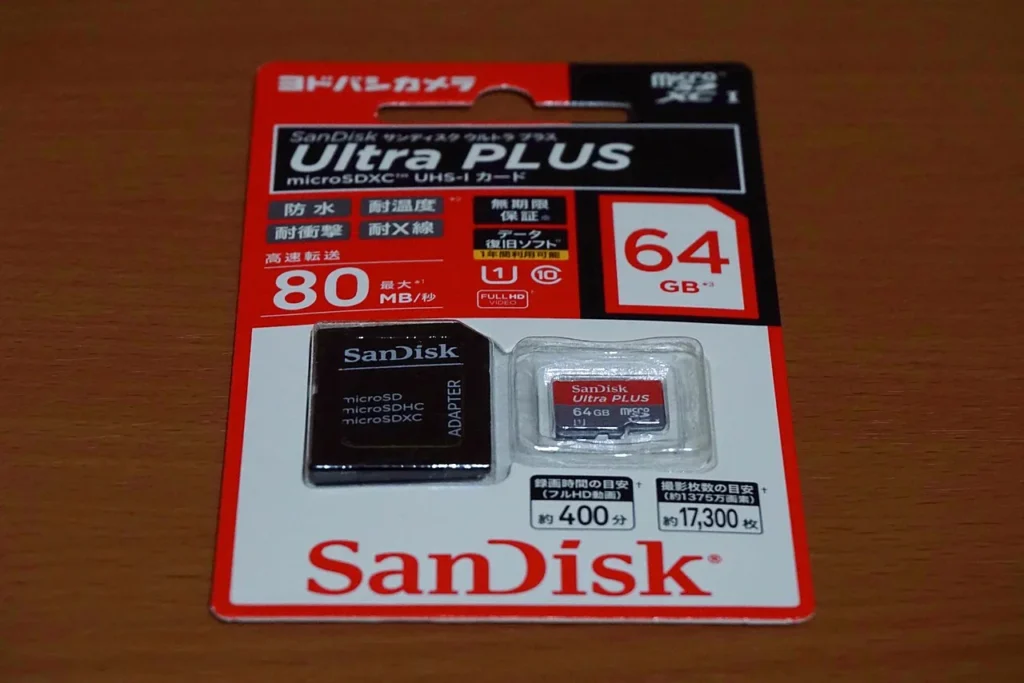
SanDisk’s spec page lists the Extreme from 32 GB to 2 TB. The 256 GB to 1 TB cards are rated up to 190 MB/s read and 130 MB/s write, and models from 64 GB to 1 TB are A2-rated at 4,000 random reads and 2,000 random writes per second, with U3 and V30 ratings and a lifetime limited warranty.
Why it’s here: the 2 TB version is the simplest way to carry an enormous library in one card.
Its weakness: the 2 TB card costs much more per gigabyte than the smaller sizes, and SanDisk’s fastest quoted speeds again need its own reader.
Buy it if you want 2 TB in one card, or find the 1 TB on a good deal. Skip it if 1 TB is enough; the PRO Plus is the better value there.
Check today’s price at SanDisk · Check today’s price on Amazon India
Not everyone needs a top-tier card. For a smaller budget, there’s a cheaper option that still does the job.
4. Samsung EVO Select: the budget pick
Engadget recommends the EVO Select as its budget choice. Its sequential write speed in Engadget’s testing was just under 70 MB/s, slower than the cards above, and the newer versions carry U3, V30 and A2 ratings. It’s also the card Steam Deck HQ used in its drive comparison, so you know how it behaves in a Deck: fine for play, slower in loading screens.
Why it’s here: it’s usually the cheapest card from a major brand that still meets the ratings that matter.
Its weakness: slower writing makes big installs and updates take longer. The smallest 64 GB version has lower ratings, so buy 256 GB or more.
Buy it if the price gap to the PRO Plus is big where you live. Skip it if it isn’t; the PRO Plus is worth a small premium.
Check today’s price at Samsung · Outside the US, look for the near-identical Samsung EVO Plus on Amazon India
There’s one kind of card to steer clear of, and it’s the newest.
Skip microSD Express for the Steam Deck
microSD Express cards use a much faster PCIe connection, and they’re the only cards the Nintendo Switch 2 accepts for games, as Engadget notes. The Steam Deck’s slot is UHS-I, so it can’t use that speed. You’d pay a premium for performance the Deck can’t reach. If you own both a Switch 2 and a Deck, buy each its own card. Our Steam Deck vs Switch 2 comparison covers the other differences.
How much storage do you need?
The right size depends on what you play, not on how many games you own:
- 256 GB: indie games, older games and emulation. Plenty for a retro setup with EmuDeck.
- 512 GB: a mix of indies and a few big games. The sensible minimum for most people.
- 1 TB: a proper library of modern games. Many big releases need well over 50 GB, and some go past 100 GB.
- 2 TB: your whole library, all the time.
A good rule: buy the next size up from what you think you need. Game sizes only go one way, and swapping cards is more annoying than paying a little more once.
Why prices are all over the place in 2026
If a card costs more than you expected, it isn’t your imagination. Memory prices rose sharply this year as AI data centers bought up supply. When Nintendo announced its Switch 2 price rise, Tom’s Hardware summed up the market: “Memory and storage are significantly overpriced.” Engadget also warns that card prices and stock are volatile.
The practical advice: decide which card and size you want, set a price alert, and buy when it dips. Retail sales events tend to bring memory card discounts.
Which games belong on the card, and which on the SSD
If your Deck has a decent internal drive, you get the best of both by splitting your library. The published tests above point to a simple rule: anything that streams lots of data while you play goes inside; everything else can live on the card.
Keep on the internal SSD:
- Big open-world games that load new areas as you move, where the card showed rougher dips in testing.
- Games you play every day, so their loading screens stay short.
- Online games with frequent matches and long loads between them.
Put on the microSD card:
- Indie games, which are usually small and light on streaming.
- Older games, from before fast SSDs were common in consoles and PCs.
- Turn-based, puzzle and strategy games, where an extra few seconds of loading barely matters.
- Emulated games, which are small and load quickly from any good card.
Moving a game later takes a minute in its Properties menu, so you don’t have to get this right on day one. Start with everything on the card, then move the one or two games where loading screens bother you.
How to set up a microSD card on your Steam Deck
- With the Deck on, push the card into the slot on the bottom edge, label side facing away from the screen, until it clicks.
- SteamOS usually offers to format a new card. Accept, and wait for it to finish. Formatting erases the card.
- If you aren’t prompted, open Settings and look for the format option for the SD card. It sits under System or Storage, depending on your SteamOS version.
- In Settings, choose the card as the default place to install new games, if you want everything to go there.
- To move an installed game, open its Properties, then Installed Files, and use the move option.
If you have a gaming PC on the same network, you can fill the card faster by copying games from your PC over Wi-Fi.
How to avoid fake cards
Counterfeit cards that report more space than they have are common on marketplaces. They work at first, then corrupt your files once they fill up.
- Buy from the maker’s own store or a large, reputable retailer, not a marketplace seller you don’t know.
- Be suspicious of a 1 TB or 2 TB card priced far below the brands above.
- Test a new card’s real capacity before trusting it, with a tool such as F3 on Linux or H2testw on Windows.
microSD card or SSD upgrade?
A card is the easy option: no tools, no risk, and you can move it to another device. An internal SSD is faster for loading and better for games that stream data while you play, but it means opening the Deck and reinstalling SteamOS. Our Steam Deck SSD upgrade guide walks through it.
For most people, a 512 GB or 1 TB card is all the upgrade they’ll ever need. If you own the old 64 GB model, though, its slow internal storage makes an SSD upgrade the bigger improvement.
Who doesn’t need a card at all
If you mostly stream games from a PC or play through cloud services, games don’t live on the Deck, and the internal storage may be enough. The same goes for a 1 TB Deck OLED used for a handful of games at a time. For everyone else, it’s the best-value upgrade you can buy.
One big card or several smaller ones?
You don’t have to put everything on one card. Steam keeps track of games on each card you’ve used, so you can swap cards like cartridges: one for big modern games, one for indies, one for emulation. Games on a card that isn’t inserted simply show as not installed until you put it back.
Two cards also spread the risk. If one fails, you lose half a library, not all of it, and re-downloading half a library is a much shorter evening.
The case for one big card is convenience. You never carry the wrong card on a trip, and you never lose a tiny card in a bag. If you swap often, label each card with a fine marker or keep them in a small case, because microSD cards all look alike after a week.
Our suggestion: one large card for the games you play every week, and a cheaper second card for everything else.
Will a microSD card wear out?
Every flash card has a limited number of write cycles, but a gaming library is a gentle job. Once a game is installed, the Deck mostly reads from the card, and reading barely wears flash memory. Updates and new installs write to it, but nowhere near the constant writing of a dashcam or security camera.
That’s why the warranties are worth reading. Samsung’s PRO Plus warranty lasts 10 years but excludes continuous recording and other write-heavy uses such as security cameras and dashcams. Game storage isn’t in that category, so a well-made card should outlast the Deck it sits in.
The bigger risk is physical: pulling the card out while the Deck is writing to it. Shut the Deck down, or at least make sure nothing is downloading, before you remove a card.
Can you use the same card on a PC, phone or Switch?
Not easily, and it’s worth knowing before you fill a card with games. When the Steam Deck formats a card, it uses a Linux file system. A Windows PC won’t open that card without extra software, and a phone or Nintendo Switch will offer to format it, which would erase your games.
So treat a Deck card as a Deck card. If you need to move files between the Deck and a PC, use a USB drive, your home network, or cloud storage instead. And if you’re upgrading to a new card, copy games over Wi-Fi from a PC rather than trying to clone the old card.
What else lives on the card
Games aren’t the only thing you can store there:
- Emulation. EmuDeck can put its whole folder on the card, including your own game files, saves and BIOS files.
- Non-Steam games. Launchers such as Heroic can install Epic and GOG games to the card.
- Media. Films and music for flights, if you’d rather not stream.
Keep saves backed up, though. Steam Cloud covers most Steam games, but emulator saves and some non-Steam games keep their saves only on the card.
If you might move to another handheld later
Some handhelds have faster card readers than the Deck. The ROG Xbox Ally X has a UHS-II reader, according to ASUS, and UHS-II cards would run faster there. If you’re likely to switch to a device like that, a UHS-II card is a reasonable buy, because it still works in the Deck at UHS-I speed. If you’re staying with the Deck, a UHS-I card is the better value.
The Switch 2 is the exception again. Its game storage needs microSD Express cards, as Engadget explains, so no Deck card carries over.
If your card isn’t working
Most card problems have simple fixes:
- The Deck doesn’t see the card. Shut down, take the card out, check it’s the right way round, and push it in until it clicks.
- Formatting fails or the card keeps disappearing. Try formatting it again in the Deck. If it still fails, the card may be faulty or fake; test it on a PC.
- Games load very slowly. Check the card’s ratings. An old card without U3 or A ratings can be much slower than the cards in this guide.
- A game stutters badly from the card. Move that game to the internal drive. Games that stream a lot of data while you play are the ones that benefit most from the SSD.
If none of that helps, contact the card maker. The cards in this guide all come with long warranties.
A 30-second checklist before you buy
- Ratings: A2, U3 and V30 on the card or packaging.
- Bus: UHS-I is all the Deck can use. UHS-II is fine but no faster in the Deck. Skip microSD Express.
- Size: 512 GB or more for most people; one size up from what you think you need.
- Brand and seller: a major maker, bought from the maker or a large retailer.
- Warranty: 10 years or lifetime from the brands in this guide.
- Price: set an alert; memory prices have been volatile all year.
Frequently asked questions
What size microSD card is best for the Steam Deck?
512 GB for most people, and 1 TB if you play a lot of big, modern games. 256 GB is enough for indie games and emulation.
Does a faster microSD card make games run better on the Steam Deck?
Not average frame rates. A card mainly affects loading times, and the Deck’s UHS-I slot limits every card to the same top speed.
Can I use a microSD Express card in the Steam Deck?
It may work at standard UHS-I speed, but you’d be paying for speed the Deck can’t use. Save Express cards for the Switch 2.
Ten seconds to fit, years of use: the only mistake is paying for speed the slot will never see.